
Running
Follow three easy steps to compare two files.
1) Select "New Folder Comparison" command in "File" menu
2) Specify folder to compare on both - left and right panel.

You should click "..." button (see above) and select necessary folder.
3) Click Compare Button  to run
comparison.
to run
comparison.
Comparison
Compare Suite analyzes folders and folders' structure and highlights modification.
Compare Suite uses some specific color scheme for folder comparison. More details about color scheme below.Status Bar contains information about comparison results.
Options
Read more about folder comparison options.
Two folders can be synchronized. Use Synchronize Folders button on the toolbar to run the Synchronization wizard. The program will not only synchronize files between two folders, but will also detects if there collisions, e.g. situations where there are two files with the same name, but with different content.
More useful functions
Folder Color Scheme while comparison
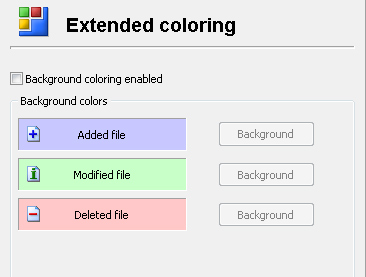
Contains information about how Compare Suite should highlight found changes. You can specify different color schemes for added, deleted or modified folders.